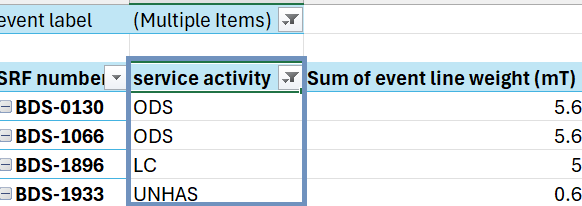
Overview:
Service Activity enables a project to identify the WFP service or activity to which a consignment or receipt should be attributed. This supports the separation of operational records for different services operating under WFP, such as the Logistics Cluster (LC), UNHRD, UNHAS and On-Demand Services (ODS). For example, consignments managed within a Logistics Cluster project may need to be attributed to different service activities for tracking and reporting purposes.
Service Activities must first be configured at project level by a RITA Administrator before operators can select them.
Step 1: Create a Service Activity (RITA Administrator):
- Open the relevant project and navigate to "Project-based Information".
- Locate the Service Activities for this Project section and select Create.

- Enter the "Service Activity ID" (name) and "Service Activity Description".
- Select "Save" to add the Service Activity to the project.

Step 2: Assign a Service Activity to a Consignment (RITA Operator)
Operators can associate a consignment with a Service Activity using the consignment’s main screen.
- Open the relevant consignment.
Navigate to the Service Activity section.
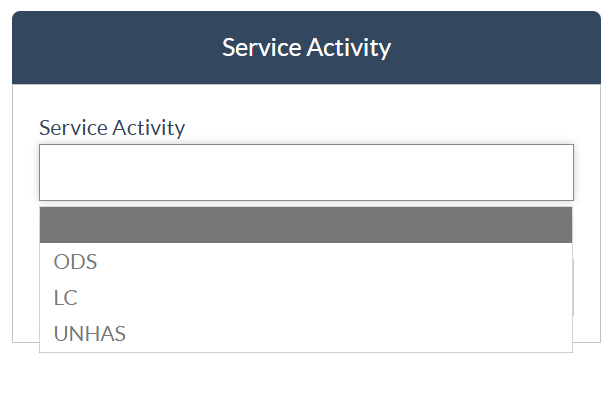
- Select the applicable Service Activity from the available options.
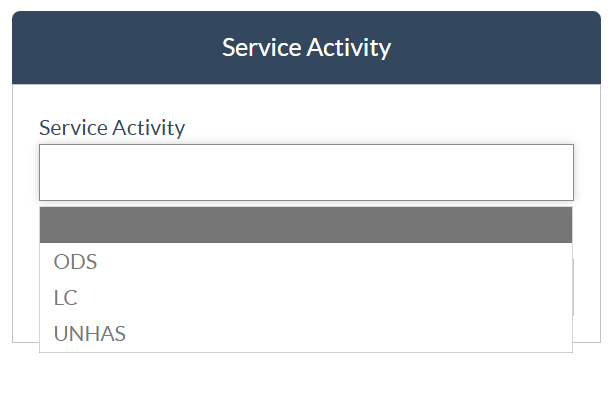
Step 3: Assign a Service Activity During Receipt
A Service Activity can also be selected when receiving cargo, allowing the receipt to be attributed to the appropriate activity.
- Open the Receive screen and proceed with the relevant receipt.
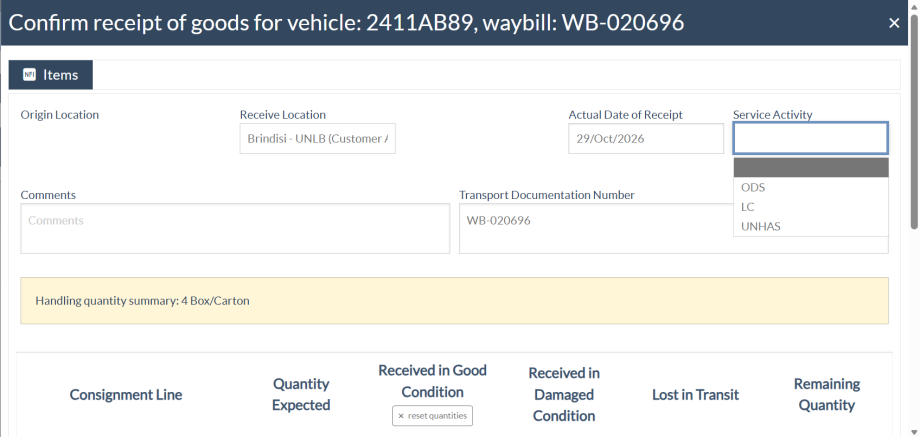
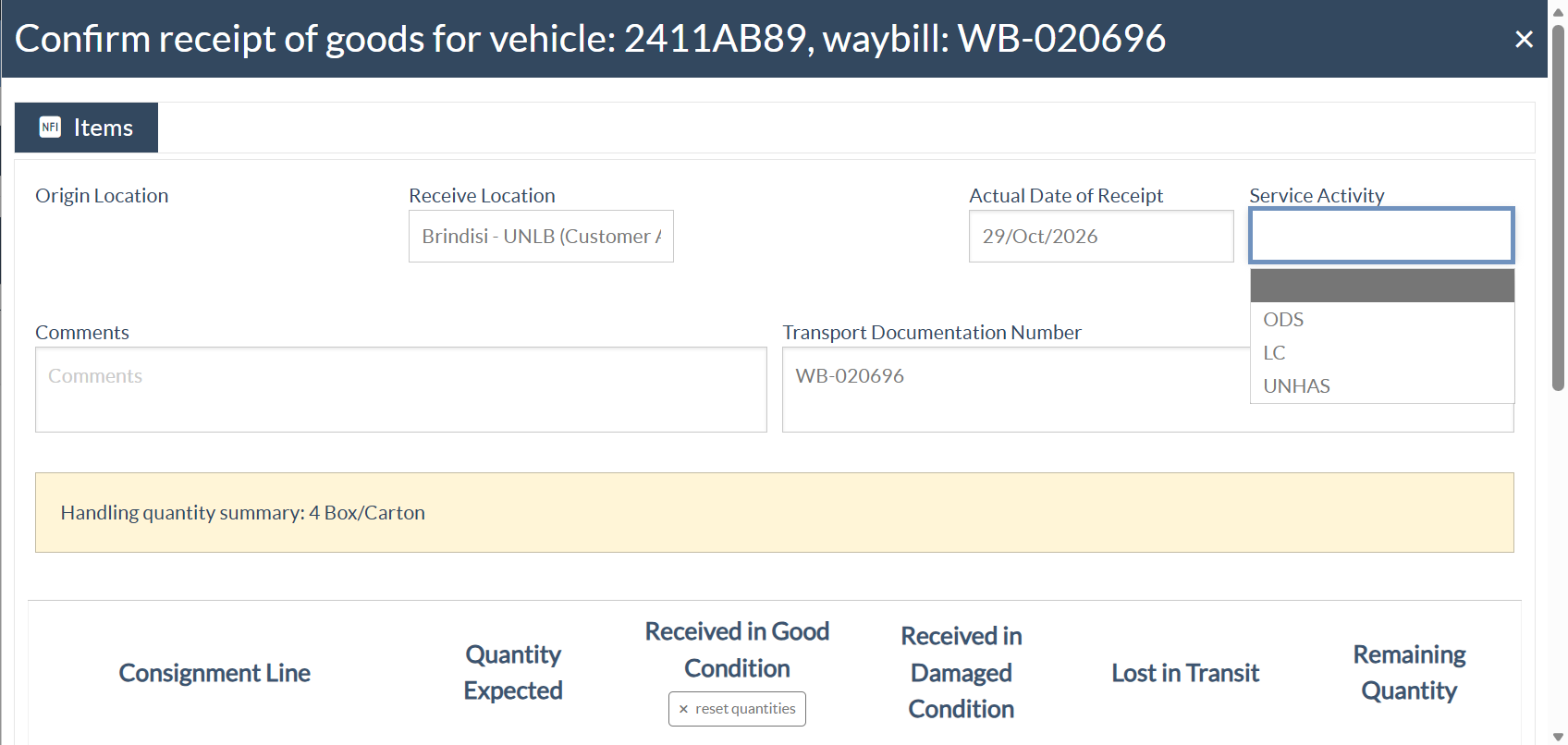
- In the Confirm receipt of goods window, locate the Service Activity field.
Select the applicable Service Activity from the dropdown list and complete the receipt process.
Step 4: Amend a Service Activity After Receipt
If a Service Activity was not selected during receipt, the operator can assign it afterwards through "Receive History".
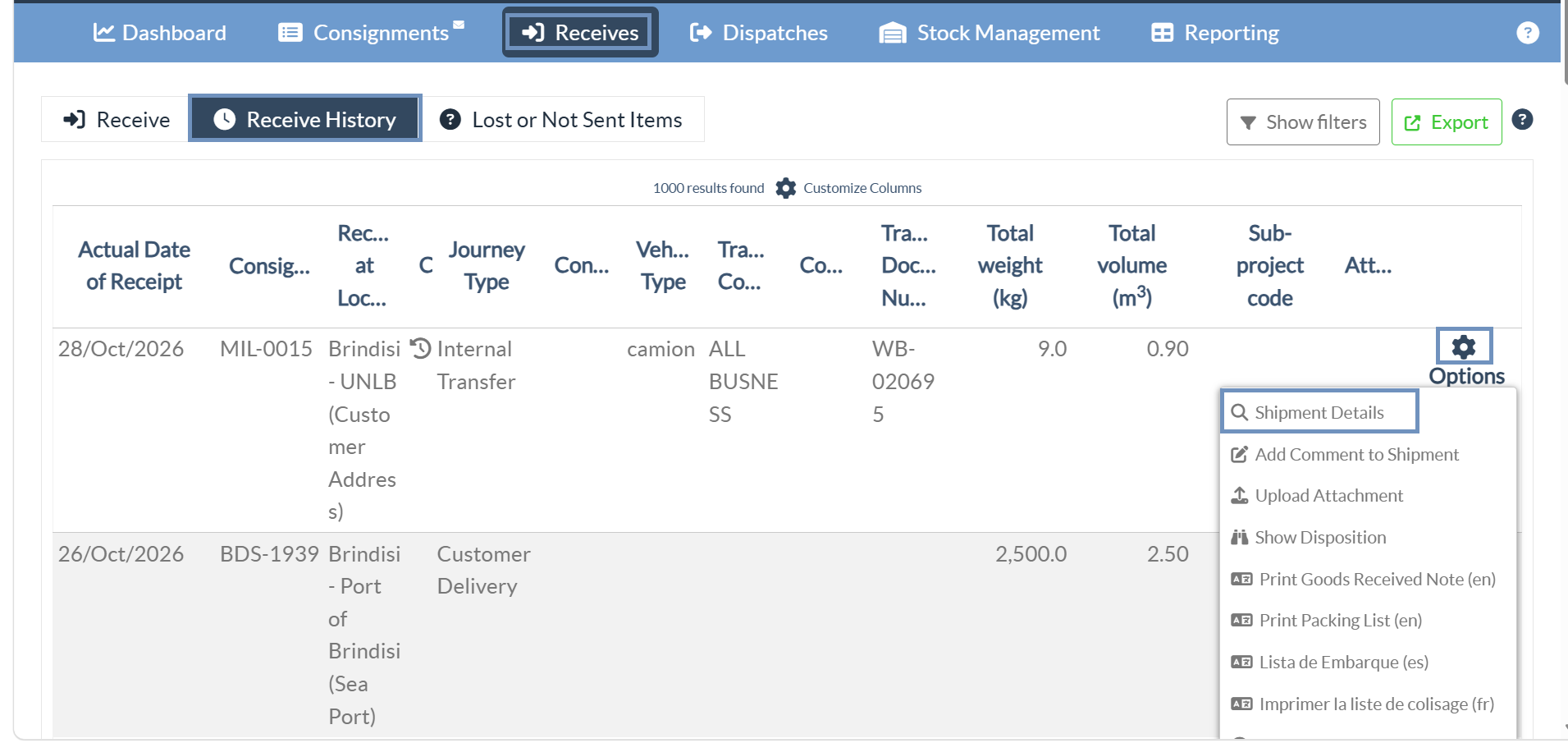
- Navigate to Receives > Receive History.
- Find the relevant receipt and open Options > Shipment Details.
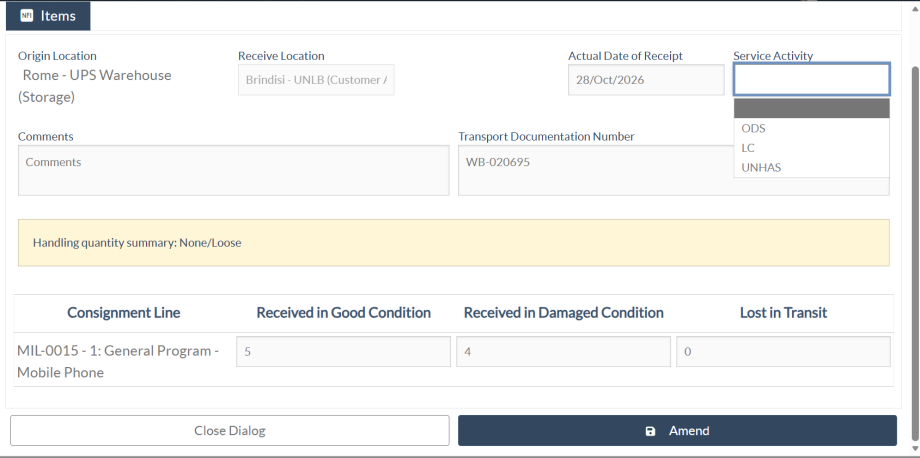
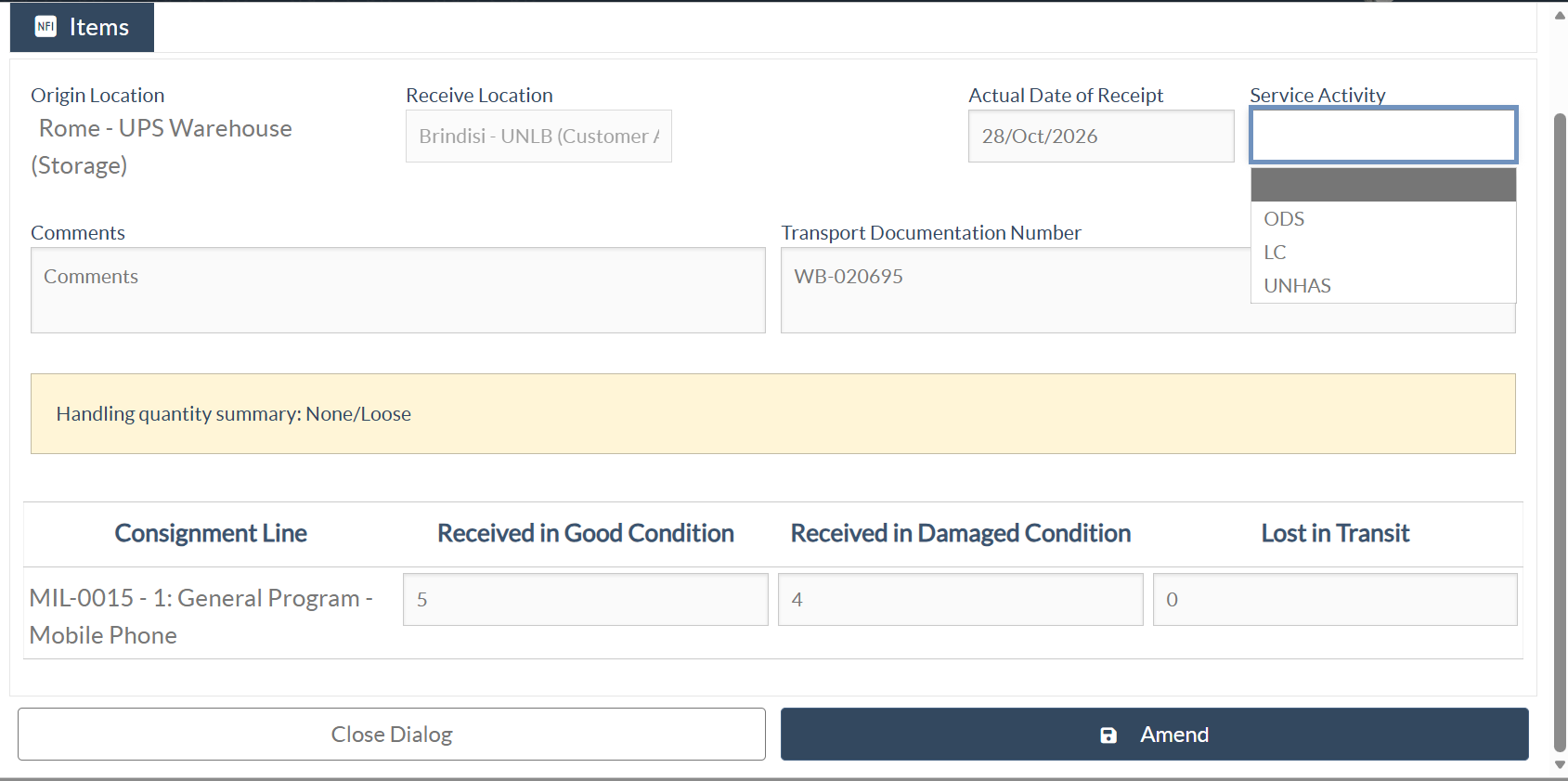
- In the shipment details window, select the correct Service Activity.
Select Amend to save the change.
Reporting
The Storage Overview report includes a Service Activity column. Operators can export the report and use this column to distinguish received cargo or stock by Service Activity.
- Navigate to Reporting and open the Storage Overview report.
- Download or export the report.
- Use the Service Activity column to filter or group the exported records by activity.