
Release Order Form
The "Release Order Form (ROF)" is a standardized document that must be completed by any organization requesting cargo release from a storage location managed by the Logistics Cluster (including requests for transporting cargo to the final destination).
Users can submit release requests by email or through RITA's online platform. The online ROF can be shared with any party using a link or can be found on each country's website.
Online Release Orders
Upon receipt of the online release order form, a notification will be displayed on the “Release Order” tab under the “Stock Management” screen.
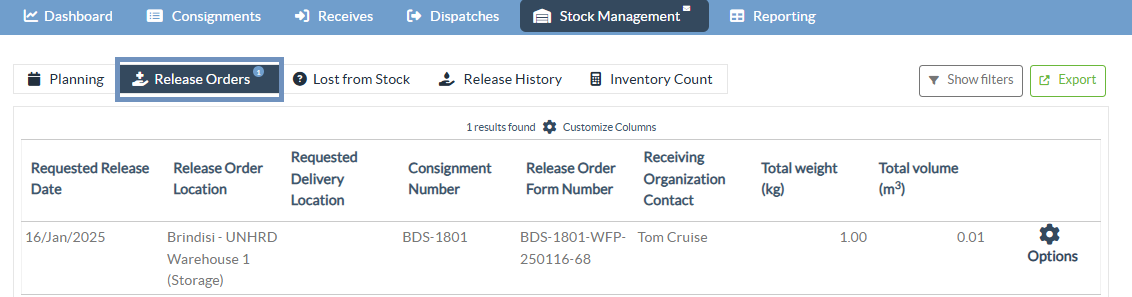
After clicking the "Release Order" tab, the operator will have three options, which are explained below:
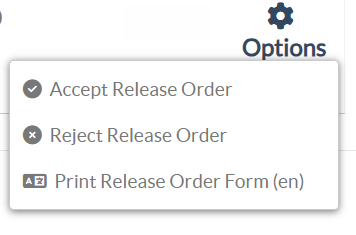
Reject Release Order
Click on the option and select “Reject Release Order” from the dropdown menu:
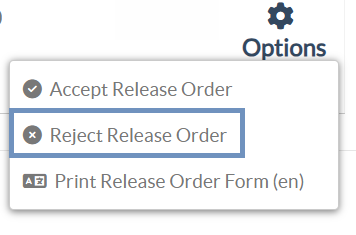
A dialog box appears. Under the comment section, the operator must provide a valid reason for rejecting the release request and click on “Reject Release Order."
Note: The person who submitted the online release order will be notified when the release order is rejected, and notes on the rejection will be included.

Accept Release Order
Step 1: RITA operator should select the option “Accept Release Order” to approve the release request of the cargo from any given warehouse.
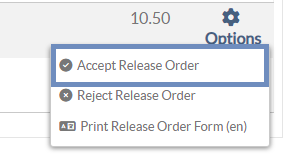
Step 2: A message box appears after the operator clicks “Accept Release Request.”
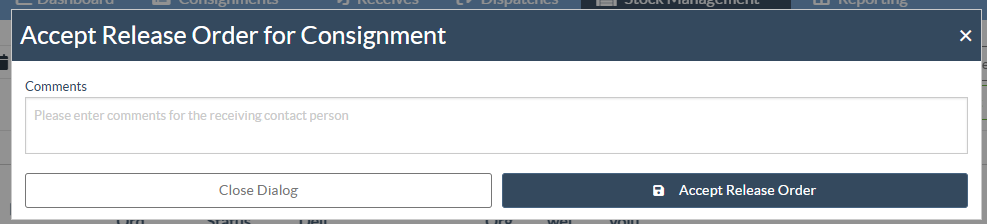
Step3: The operator may enter any relevant instructions or comments for the cargo owner before confirming the approval. These comments are shared through the RITA interface. See GIF below:
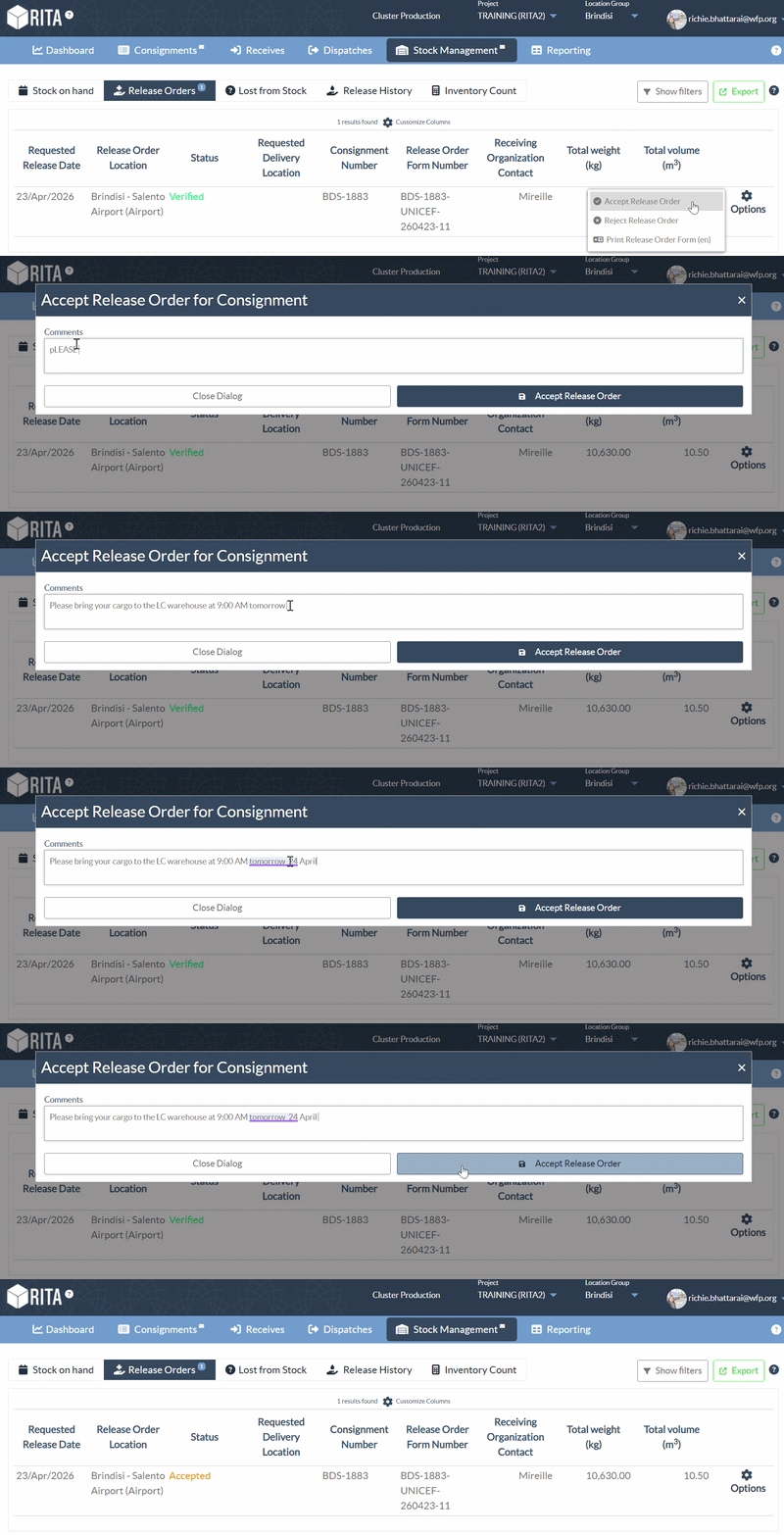
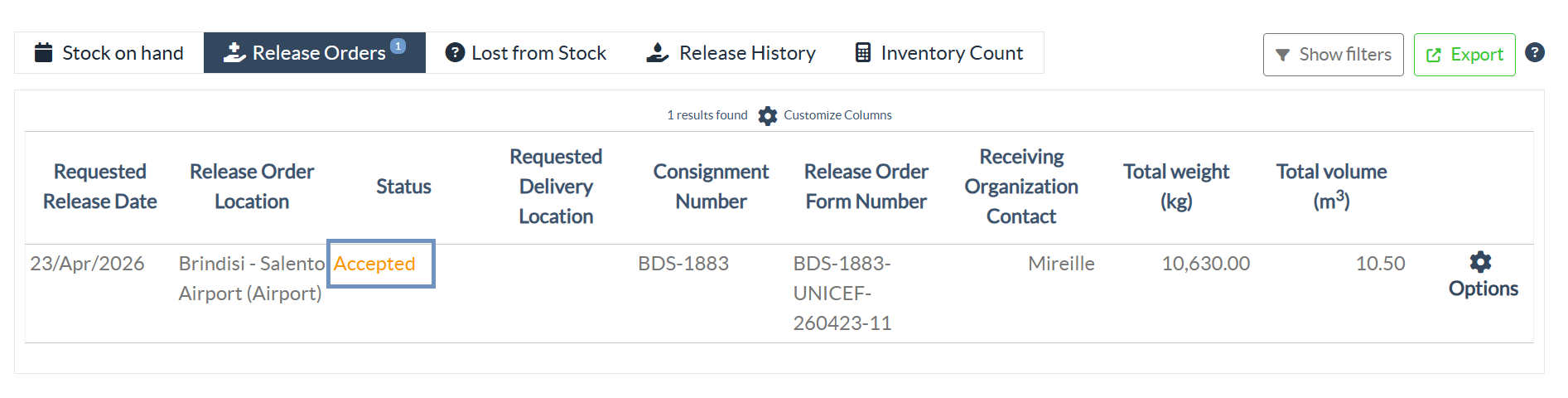
Step 4: Upon accepting, the release request moves from "Verified" status to "Accepted" status.
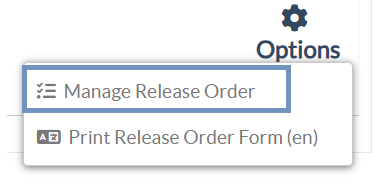
Step 5: Upon acceptance of a Release Order, the operator can manage and process the release by selecting the “Manage Release Order” option.
 | Release Comments: RITA operators approving release requests can now send instructions and messages directly to cargo owners through the RITA interface |
Manage Release Order
The “Manage Release Order" option allows RITA operators to review and manage release orders that have already been accepted. This feature supports monitoring of release activities and gives operators better control over stock movements. See GIF below:
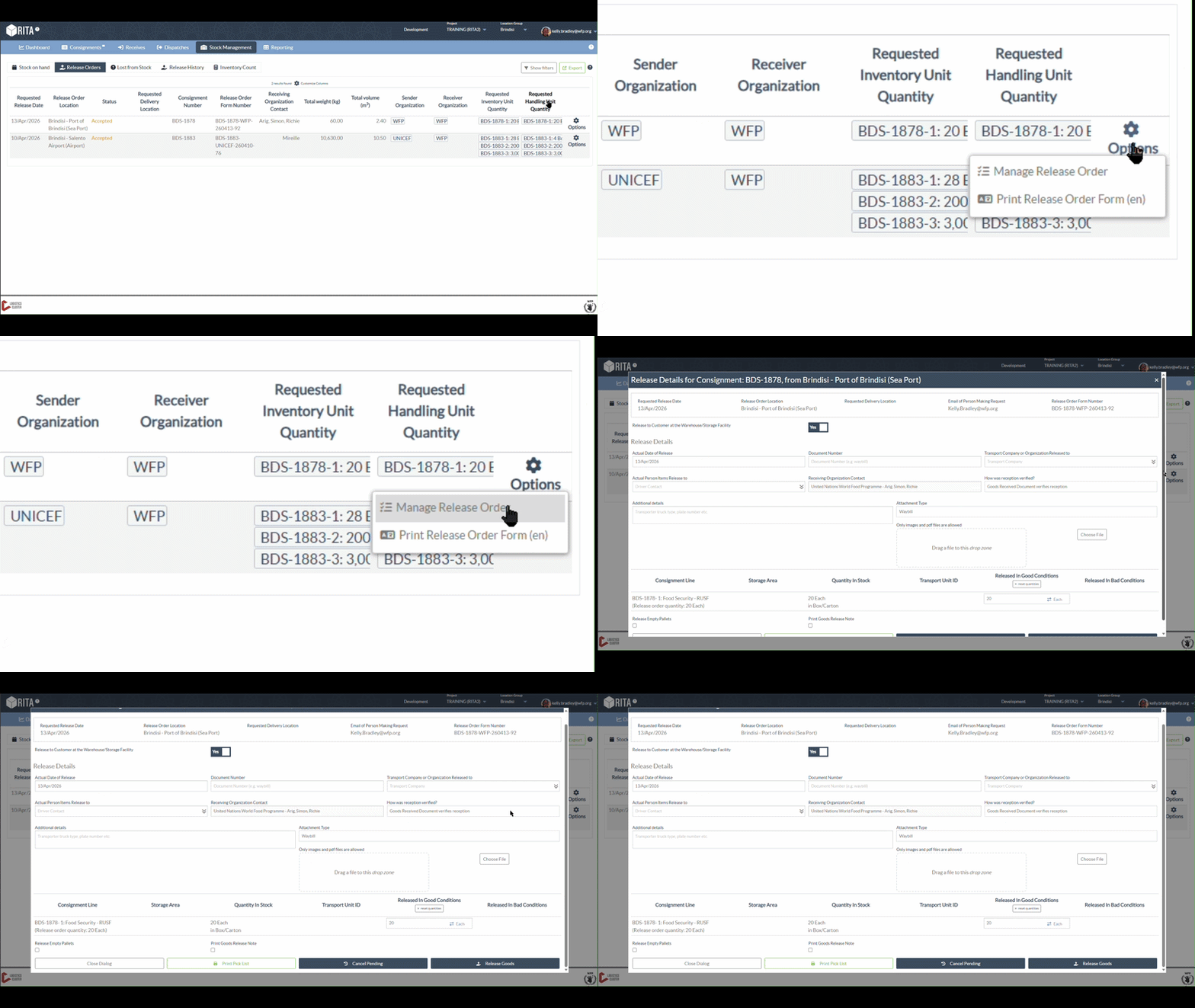
After clicking “Manage Release Order”, A release window will open, and the user will be asked whether the cargo is to be released to the customer at the warehouse or storage facility.
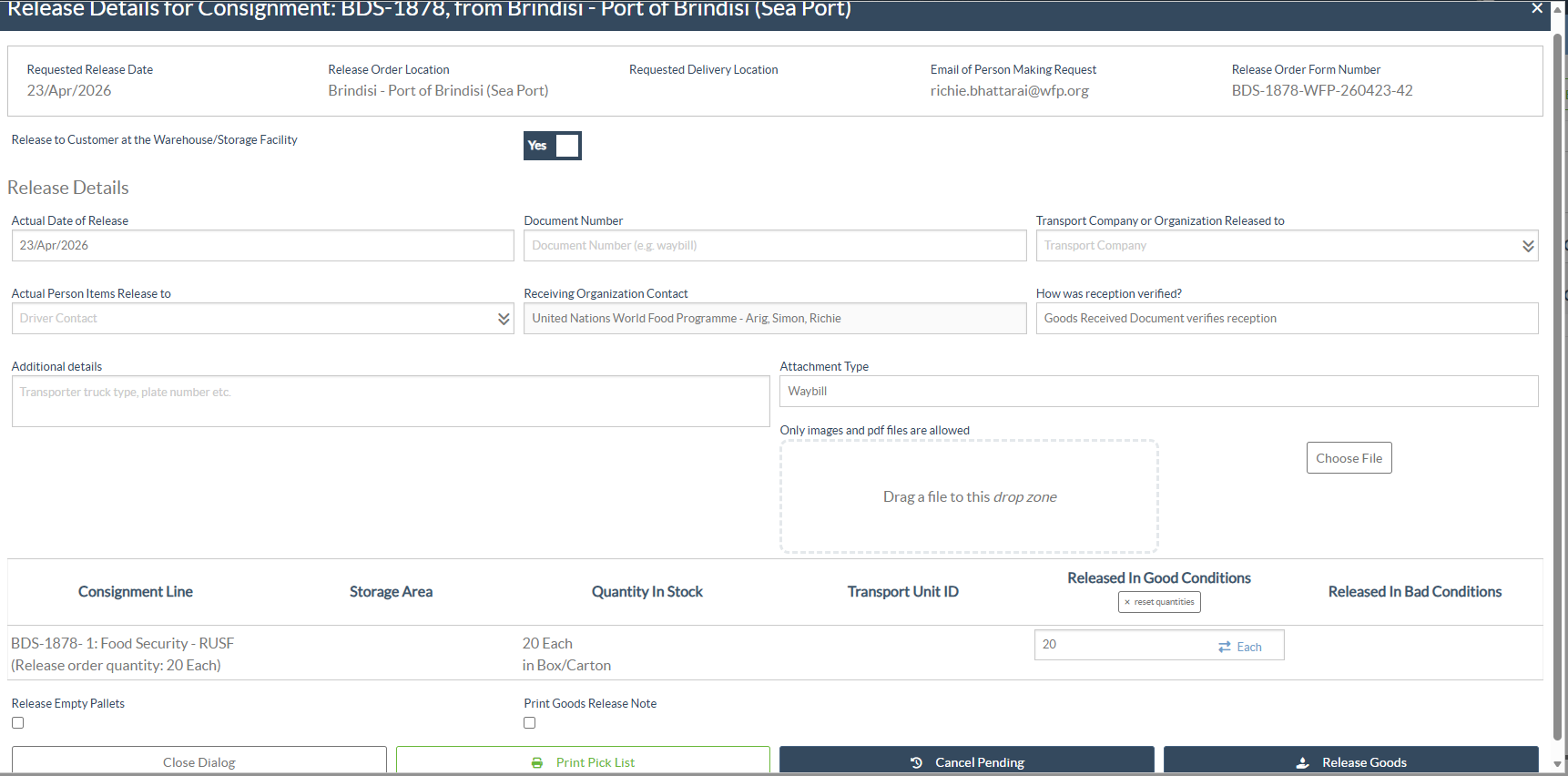
Release to Customer at the Warehouse/Storage Facility: This field determines how the cargo will be released and provides two options:

Option1: If “Yes” is selected, a Release Details section will be available for completion. The operator must fill in all required fields, including:
- Quantity for release
- Actual Date of Release
- Document Number (e.g., Waybill/Delivery Note)
- Transport Company or Organization Released to
- Actual Person Items Released to
- Verification Method
- Supporting Documents Attachment
Once all details are completed, enter the quantities to be released and click “Release Goods” to finalize the release.
Note: For detailed guidance on completing the fields in the Release box, please refer to paragraph “Release to Customer” under the chapter Stock Management- "Planning."

Option 2: If “No” is selected, the system displays the list of planned journeys to which the release can be assigned.
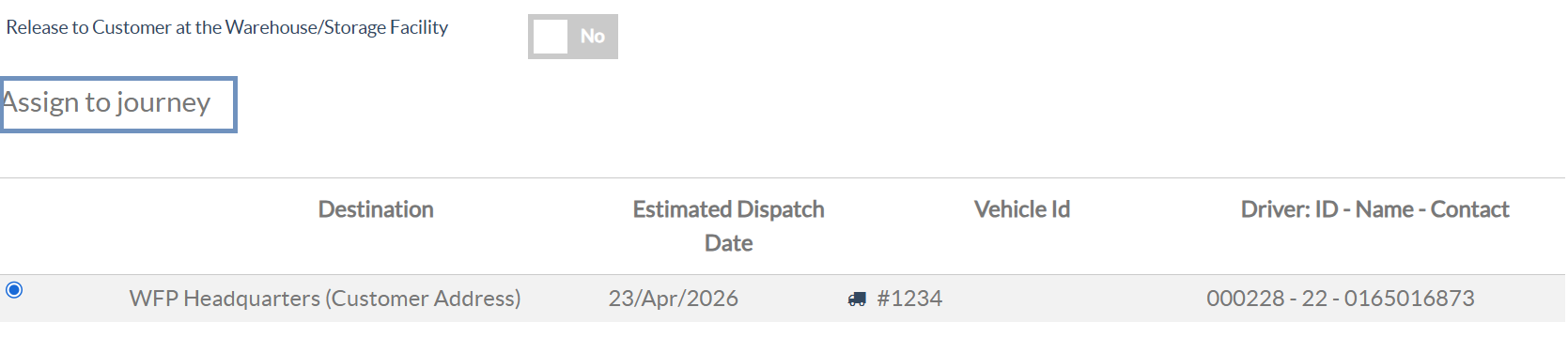
RITA operator must select the planned journey and enter the required quantity to be released and click "Assign to Journey". See GIF below:
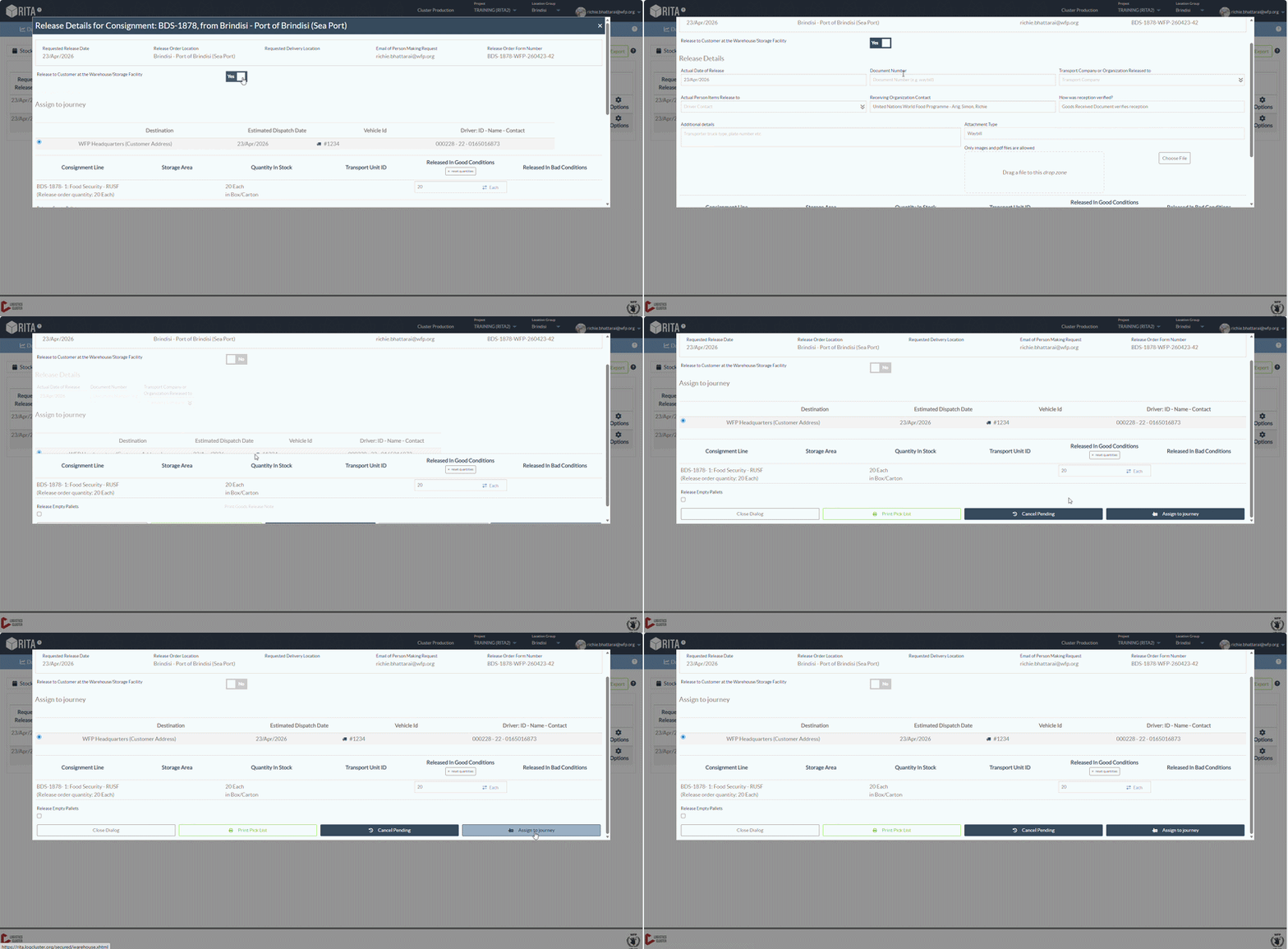
Navigate to the Stock Management -Planning tab and complete the final release to the customer.
For detailed guidance on completing the fields in the Release box, please refer to paragraph “Release to Customer” under the chapter Stock Management- "Planning."
| Partial Release: The “Manage Release Order” feature also enables RITA operators to process partial releases. Cargo can be split across different releases and, where applicable, across different organized deliveries when requestors submit a release with delivery request. |
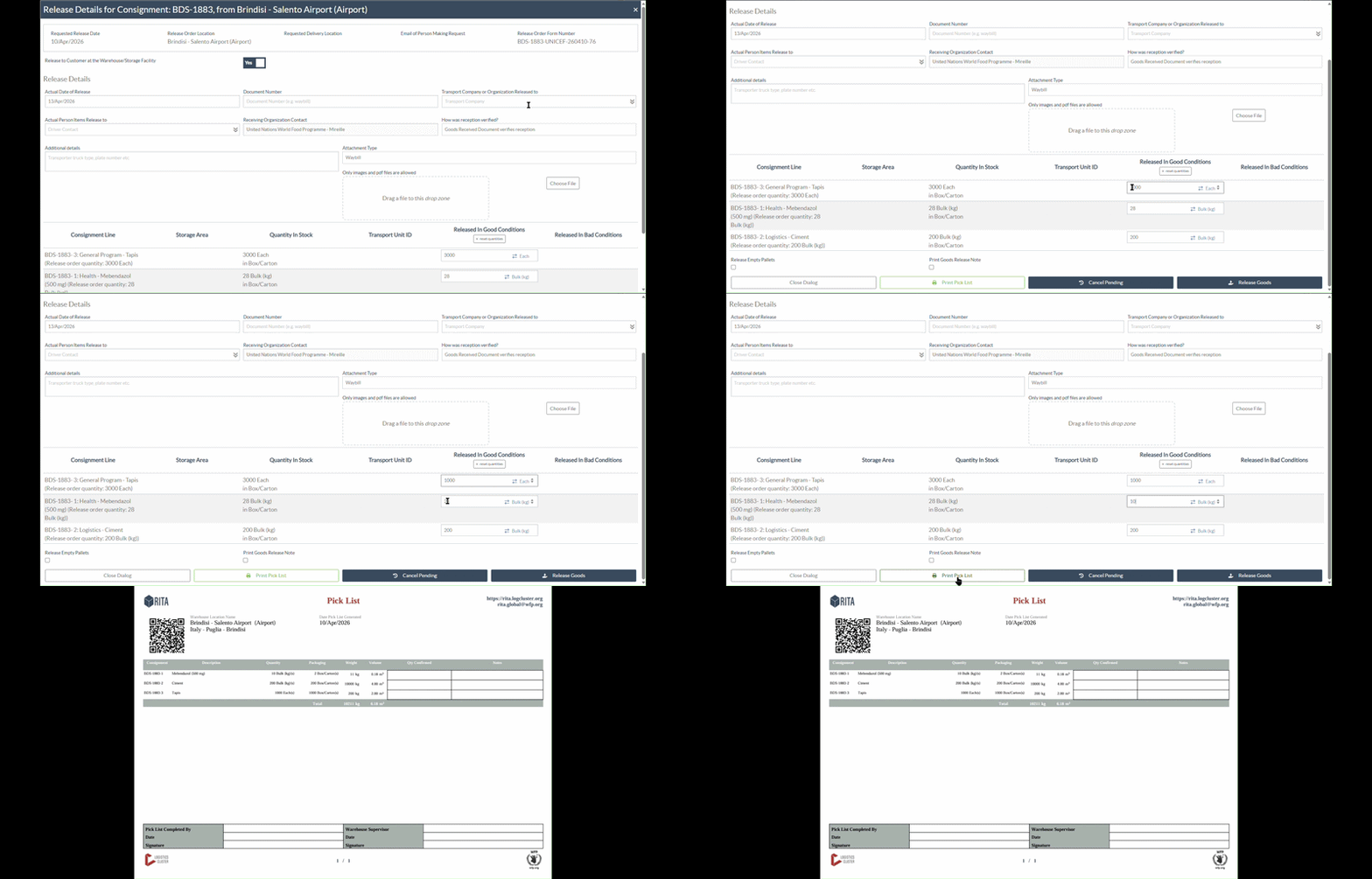
Print Pick List
Before the release, RITA operators and warehouse managers can generate a “Pick List” to share with storekeepers in preparation for cargo release. This list helps ensure that all items are identified and prepared in advance, facilitating a smooth and efficient release process.
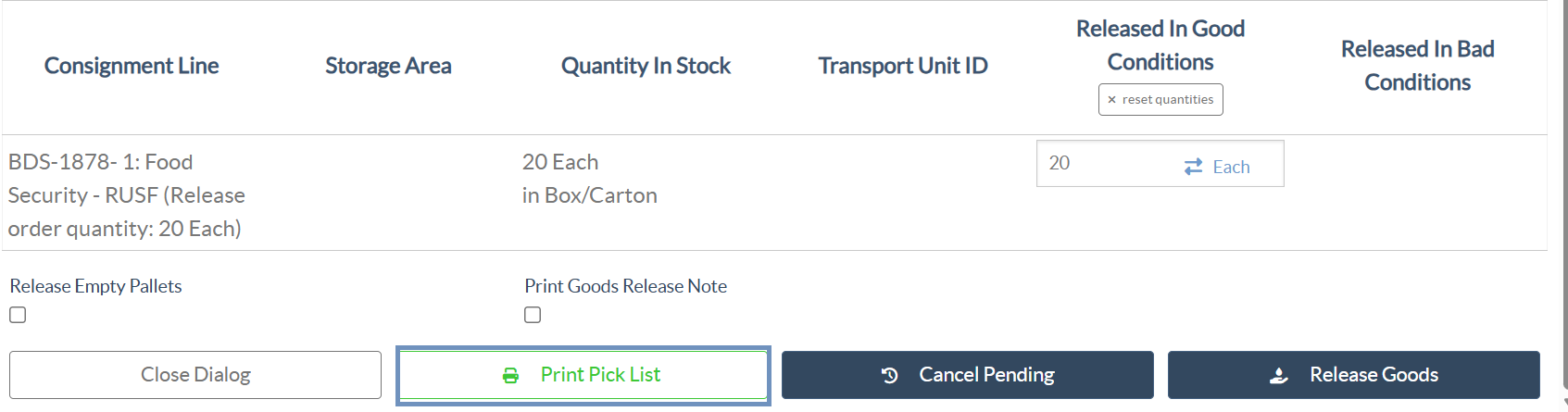
See GIF below:
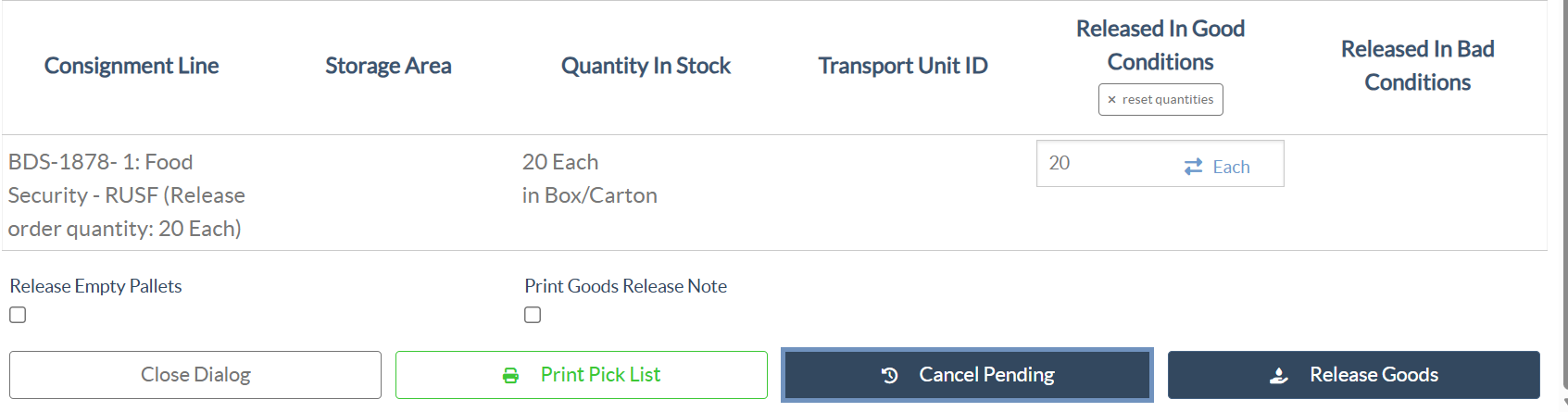
Cancel Pending
If a release request will not be fully processed, RITA operators can use the “Cancel Pending” option to cancel the request. This applies whether no quantity is released or only a partial quantity is released. Any remaining, unprocessed quantity can be cancelled using this option.
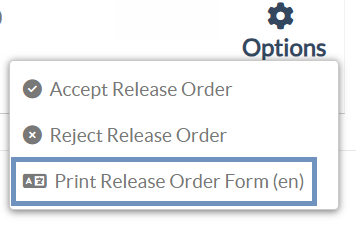
Print Release Order Form
- The print release order option enables the RITA operator to print the release request form submitted by the customer online.
- Click on Options and select “Print Release Order Form” from the drop-down menu.
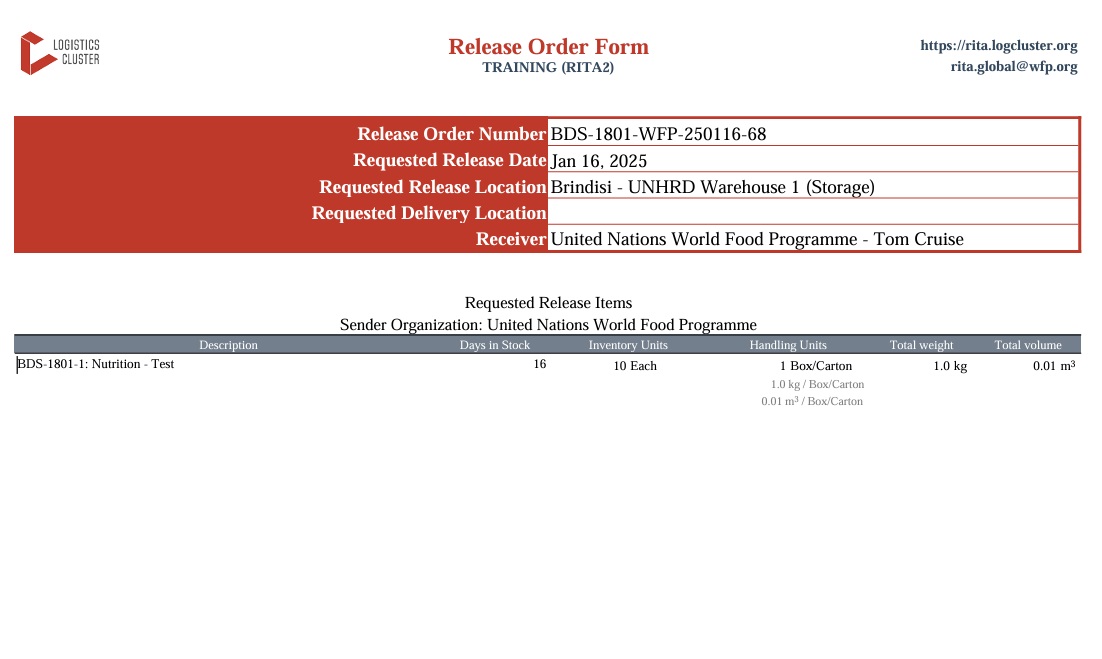
The details in the release order form include the following:
- Release order number generated automatically from RITA.
- Requested release date of the items.
- Requested release location
- Receiver organization name.
- Product description, such as consignment number and line-item number, product category, item name, packaging units, weight, volume, quantity requested for the release, total volume, and weight.
- Name of the preparer.
|
| User notification system: When users request cargo release through manual or online ROF, alert emails will be sent to requestors and RITA operators, alerting key personnel and documenting the workflow. |
Manual Release Form
Users can also submit an email containing an Excel attachment to request the release of their cargo. In these cases, the operator can facilitate the release through the Stock Management- "Planning" page. For detailed instructions on how to process the release, please refer to the section titled “Release to Customer” in the Stock Management chapter under "Planning."
